

Overview
Merging Excel files into a single sheet is crucial for consolidating information, enhancing data integrity, and streamlining workflows. This is particularly vital in finance, where comprehensive data analysis is essential. This article outlines various methods to achieve this goal, including the use of Power Query for automation. By ensuring consistent data formats, organizations can ultimately improve efficiency and significantly reduce errors in data management.
Introduction
Merging Excel files into a single sheet is a fundamental skill that can significantly enhance data management and analysis. By consolidating information from multiple spreadsheets, professionals can streamline workflows, reduce redundancy, and improve the accuracy of their reports. However, the process often presents challenges, from data formatting issues to performance slowdowns. This raises an important question: what is the most efficient way to merge these files without losing critical data? This guide explores various methods to achieve seamless integration, offering step-by-step instructions and troubleshooting tips to ensure a smooth merging experience.
Understand the Basics of Merging Excel Files
The process to merge Excel files into one sheet is crucial as it involves consolidating information from various spreadsheets. This practice streamlines information, minimizes redundancy, and enhances analytical capabilities. For instance, in financial modeling, professionals often combine data from multiple sources to produce comprehensive reports, ensuring all relevant details are easily accessible.
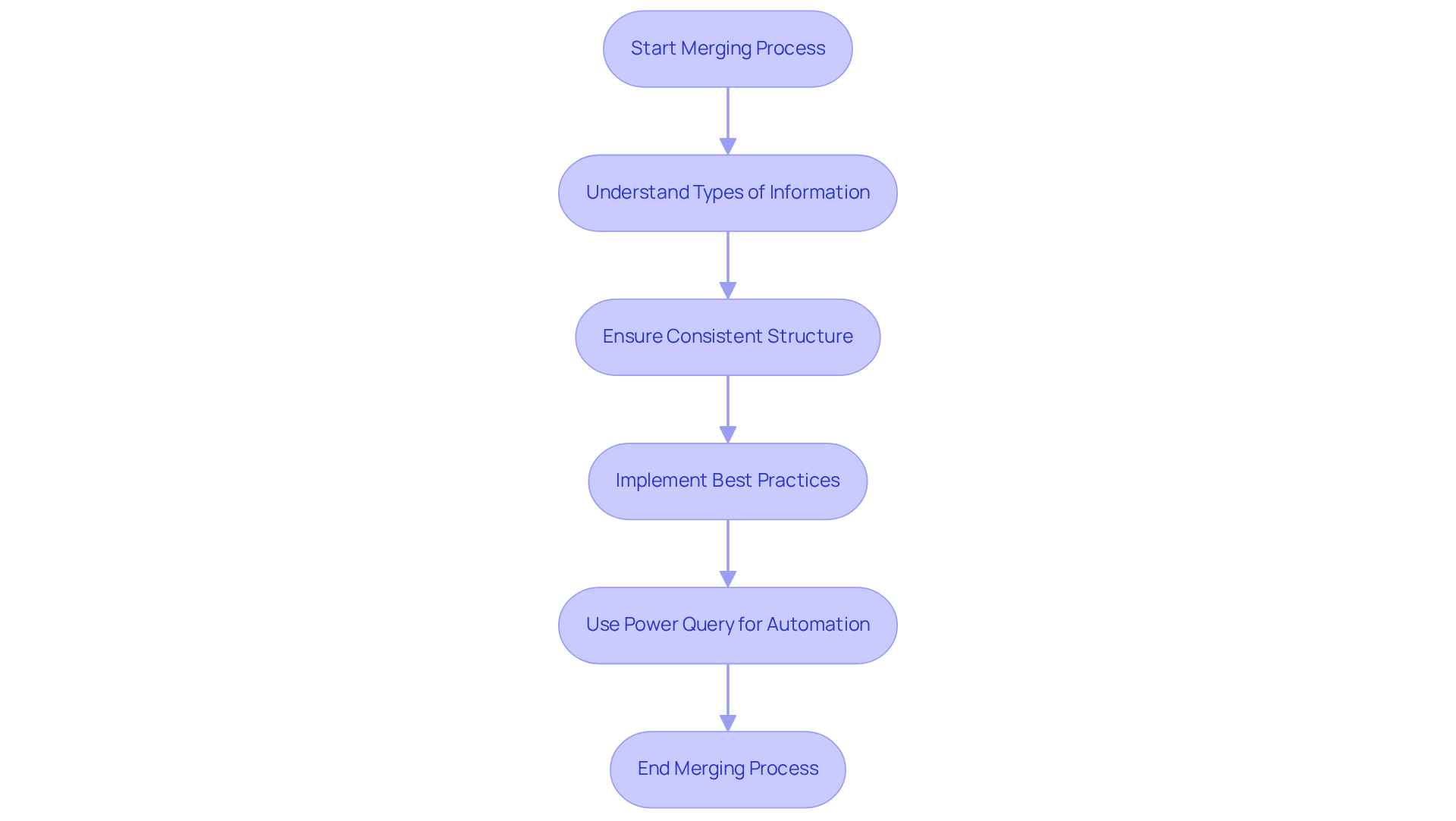
Understanding the types of information encountered during merging—such as numerical values, text entries, and formulas—is vital for . Familiarity with the structure of your documents, including consistent headings and types of information, significantly improves the integration experience. As R. Ganesh, a Senior Information Engineer, emphasizes, "Ensure all files have a consistent structure (same columns, types, and headers)."
The purpose to merge Excel files into one sheet can vary, whether for reporting, analysis, or data cleanup. For example, an analyst might merge sales data from different regions to identify trends and make informed decisions. Statistics indicate that data redundancy in spreadsheets can lead to inefficiencies, with studies suggesting that up to 30% of entries may be duplicated across various documents. Furthermore, the average number of rows in the files being merged typically ranges from 6,000 to 10,000, highlighting the volume of data professionals often handle. This underscores the importance of merging as a method to enhance data integrity and streamline workflows.
By implementing best practices to merge Excel files into one sheet, such as utilizing Power Query for automation and ensuring data consistency, professionals can significantly improve their analytical processes. Industry experts highlight that employing a systematic approach to merging not only saves time but also reduces the likelihood of errors, ultimately leading to more reliable analyses. R. Ganesh also advises, "Use Power Query to combine and transform data," reinforcing its value as a vital resource for finance professionals.
Explore Different Methods to Merge Excel Files
Various effective approaches can be used to merge Excel files into one sheet, each providing unique benefits suited to different requirements. Here are the most common approaches:
- Copy and Paste: This straightforward technique involves manually duplicating information from one document and inserting it into another. While effective for small datasets, it can become tedious and time-consuming with larger datasets, potentially leading to . Additionally, opening several large spreadsheet files may decrease your computer's performance, rendering this approach less effective for extensive information management.
- Excel's Consolidate Feature: This built-in tool enables users to merge information from multiple sheets based on common labels, making it especially beneficial for summarizing content. It simplifies the process of information aggregation, enhancing efficiency and precision in reporting. Numerous finance experts value this feature for its capability to ease sluggish manual computations and automate certain tasks, ultimately enhancing information presentation. However, challenges such as inconsistent formatting and manual errors can arise during consolidation, which users should be aware of.
- Power Query: A robust feature in Excel, Power Query allows users to import, transform, and combine information from various sources seamlessly. This approach is ideal for managing larger collections and intricate combination tasks, as it streamlines the process to merge Excel files into one sheet, facilitating the cleaning and optimization of financial information. Users can easily add information into a single table, making it a valuable resource for finance professionals seeking to improve their workflow.
- Third-Party Tools: Numerous software options exist that can automate the merging process, providing additional functionalities such as information cleaning and validation. Choosing a trustworthy tool can greatly lessen the time and effort needed for information consolidation, enabling finance teams to concentrate on strategic activities instead of manual tasks. For example, Prophix One offers tools for information integration and automation, improving efficiency compared to conventional Excel methods.
- VBA Macros: For individuals knowledgeable in programming, utilizing VBA macros can streamline the combining of financial information from various workbooks. This approach necessitates thorough testing and security considerations but can save time and decrease manual mistakes in the integration process.
- Get & Transform Tool: Users of Office 365 can use the Get & Transform tool to transfer information from a single worksheet or directories of documents, offering another useful choice for combining documents.
By utilizing these techniques, finance experts can enhance their efficiency and information management processes by learning how to merge Excel files into one sheet. Creating a consistent update process when combining spreadsheets can also aid in managing large datasets more effectively. Significantly, this spreadsheet software can hold a maximum of 255 worksheets in one workbook, which is essential for users handling large amounts of information. Furthermore, dividing older spreadsheet documents from recent information can enhance documentation efficiency and enable smoother processing.

Follow Step-by-Step Instructions for Each Merging Method
Here are detailed instructions for each merging method, along with practical insights and considerations for finance professionals:
Copy and Paste
- Open the initial spreadsheet and select the information you wish to combine.
- Right-click and choose 'Copy' or press
Ctrl + C. - Open the second spreadsheet file and select the cell where you want to paste the data.
- Right-click and choose 'Paste' or press
Ctrl + V.
Excel's Consolidate Feature
- Open a new Excel workbook.
- Navigate to the 'Data' tab and click on 'Consolidate'.
- Select the function you wish to use (e.g., Sum, Average). This feature is particularly useful for finance professionals who need to aggregate data from multiple sources efficiently.
- Click 'Browse' to select the documents you wish to consolidate.
- Add the ranges from each file and click 'OK'. Note that users have reported challenges with formatting, such as ensuring numbers retain their comma formatting during consolidation. To address this, consider converting numbers to text in a spreadsheet program before merging.
Power Query
- Open Excel and go to the 'Data' tab.
- Click on 'Get Data' > 'From File' > 'From Workbook'.
- Select the files you want to merge and load them into Power Query.
- Use the 'Append Queries' option to merge the information. This method is highly recommended for its , especially when dealing with large datasets.
- Click 'Close & Load' to import the merged data into the spreadsheet. Be mindful that users have faced problems with date formatting when using Power Query; applying the TEXT function in the spreadsheet application can assist in preserving the desired date format.
Third-Party Tools
- Research and select a third-party tool that meets your requirements.
- Follow the specific guidelines given by the tool for merging Excel documents, which typically involve uploading your documents and selecting merge options.
- Download the merged document once the process is complete. While third-party tools can be effective, ensure they align with your data privacy standards, as some may store data externally.
Integrating these techniques can greatly enhance your efficiency when you merge Excel files into one sheet, especially in finance-related activities. By understanding the potential challenges and utilizing the right tools, you can streamline your workflow effectively.

Troubleshoot Common Issues When Merging Excel Files
When merging Excel files, users may encounter several common issues that can hinder the process:
- Data Formatting Issues: Consistency in data types (e.g., text, numbers) across documents is crucial. If inconsistencies are present, modify the formatting in each document prior to combining to guarantee a seamless integration.
- Missing Data: If certain data does not appear after combining, verify that all ranges are correctly selected and check for any hidden rows or columns that may obstruct visibility.
- Formula Errors: Merging files containing formulas can lead to errors if referenced cells are omitted. After merging, meticulously review all formulas to confirm their accuracy and functionality.
- Performance Issues: Large datasets can significantly slow down Excel's performance. To alleviate this, consider dividing documents into smaller segments or using , which is designed to manage information more effectively.
- Compatibility Issues: Ensure that all documents are saved in compatible formats, such as .xlsx, to prevent errors during the integration process. This step is essential for maintaining information integrity and avoiding complications.
By following these guidelines, users can effectively troubleshoot and resolve common issues encountered during the process to merge Excel files into one sheet, leading to a more efficient data management experience.

Conclusion
Merging Excel files into one sheet is an essential skill that significantly enhances data management, reduces redundancy, and improves analytical capabilities. By consolidating information from various spreadsheets, professionals can streamline workflows and produce comprehensive reports that are easier to analyze and interpret.
This guide has highlighted several methods for merging Excel files, including:
- Manual techniques like copy and paste
- Built-in features such as Excel's Consolidate function
- Advanced tools like Power Query and VBA macros
Each approach presents distinct advantages, catering to the diverse needs and complexities of data integration. Additionally, common troubleshooting tips are provided to assist users in navigating potential challenges, ensuring a smoother merging process.
Ultimately, mastering the art of merging Excel files not only enhances productivity but also fosters better data integrity and informed decision-making. Embracing these techniques empowers professionals to manage large datasets effectively, transforming their information management practices. As the demand for data-driven insights continues to rise, leveraging these merging strategies will undoubtedly enhance analytical capabilities and streamline operations across various sectors.
Frequently Asked Questions
Why is merging Excel files important?
Merging Excel files is important because it consolidates information from various spreadsheets, streamlines data, minimizes redundancy, and enhances analytical capabilities, making relevant details easily accessible.
What types of information are typically encountered when merging Excel files?
When merging Excel files, you may encounter numerical values, text entries, and formulas, which are vital for effective consolidation.
What should be considered regarding the structure of documents before merging?
It is crucial to ensure that all files have a consistent structure, including the same columns, types, and headers, to improve the integration experience.
What are some common purposes for merging Excel files?
Common purposes for merging Excel files include reporting, analysis, and data cleanup. For example, analysts may merge sales data from different regions to identify trends and make informed decisions.
How prevalent is data redundancy in spreadsheets?
Studies suggest that up to 30% of entries may be duplicated across various documents, highlighting the inefficiencies caused by data redundancy.
What is the average number of rows in files typically merged?
The average number of rows in the files being merged typically ranges from 6,000 to 10,000, indicating the volume of data professionals often handle.
What best practices can be implemented when merging Excel files?
Best practices include utilizing Power Query for automation and ensuring data consistency, which can significantly improve analytical processes.
What benefits does a systematic approach to merging Excel files offer?
A systematic approach saves time, reduces the likelihood of errors, and leads to more reliable analyses, ultimately enhancing data integrity and streamlining workflows.