
Overview
Adjusting column width in Google Sheets is crucial for enhancing data visibility and organization. Proper sizing not only makes your data more readable but also ensures that your information is presented clearly and effectively.
There are several methods to adjust column width, including:
- Manual resizing
- Auto-resizing
- Setting specific pixel dimensions
Each method has its advantages, allowing you to choose the one that best fits your needs. For instance, manual resizing gives you complete control, while auto-resizing quickly adapts to your data's size.
Consider the benefits of clear data presentation:
- It improves comprehension
- It reduces errors
- It enhances overall productivity
By implementing these techniques, you can transform your spreadsheets into powerful tools for analysis and decision-making.
In conclusion, mastering column width adjustments in Google Sheets is not just a technical skill; it's a vital step toward effective data management. Start applying these methods today to see the difference in your data presentation.
Introduction
Modifying column widths in Google Sheets is crucial—not merely for aesthetics, but for enhancing data visibility and organization. Properly adjusted columns prevent text overflow and ensure that all essential information is displayed clearly. This is especially beneficial for users transitioning from Excel, who may find themselves grappling with the nuances of Google Sheets.
Yet, many users encounter challenges with the various methods available for effectively resizing columns. How can one master these adjustments? By streamlining spreadsheet management, you can significantly improve overall readability. In this article, we will explore effective strategies to conquer this common hurdle.
Understand Column Width Adjustment in Google Sheets
Modifying the google sheets column width is crucial for enhancing data visibility and organization. Properly sized cells ensure that all content is displayed clearly, minimizing unnecessary whitespace and preventing text overflow, which can lead to misunderstandings. This is particularly important for users transitioning from Excel, who may be familiar with specific formatting practices that boost readability.
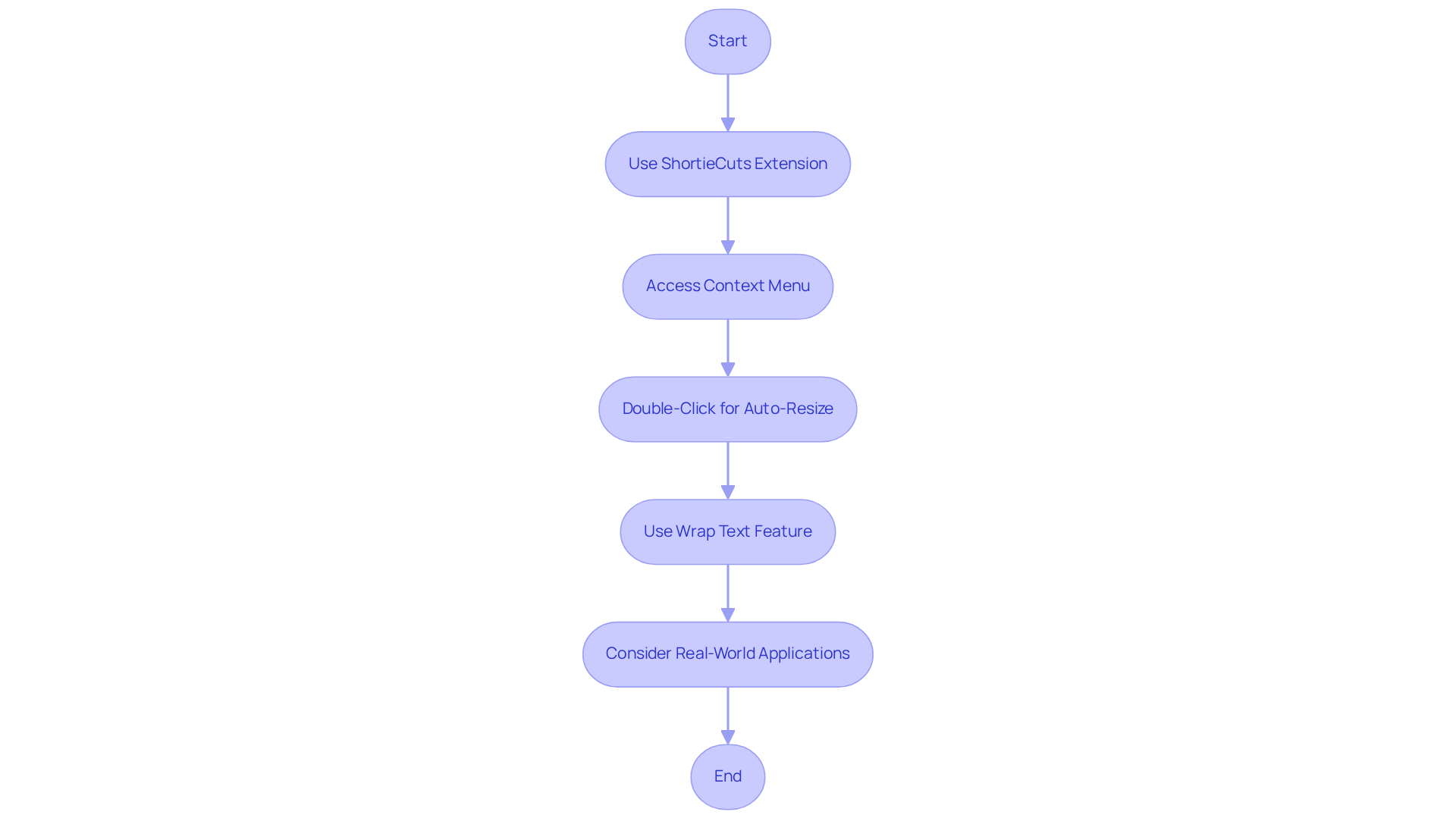
With the ShortieCuts extension, you gain access to over 300 Excel ALT shortcuts that simplify this process. For example, by pressing "ALT" (or Option on Mac), you can see key-tips in the corner of your screen, guiding you through efficient adjustments.
Utilizing the context menu allows for precise sizing of the google sheets column width by entering exact pixel dimensions, ensuring uniform data presentation. Additionally, the double-click technique for auto-resizing sections in Google Sheets column width adjusts dimensions to fit the longest text, saving time and enhancing clarity.
Consider real-world scenarios:
- A finance expert might adjust the google sheets column width to ensure full names or descriptions are visible, thereby preventing misinterpretation of critical data.
- Instructors can improve their teaching materials by resizing sections and adjusting the google sheets column width to create visually appealing and organized spreadsheets.
The 'Wrap Text' feature can also manage lengthy entries without excessively widening sections, further refining data presentation.
Ultimately, mastering table dimension adjustments not only elevates the aesthetic appeal of your spreadsheets but also enhances the overall user experience, making data analysis more intuitive and efficient. Embrace these techniques today and transform your spreadsheet management.
Explore Methods for Adjusting Column Width
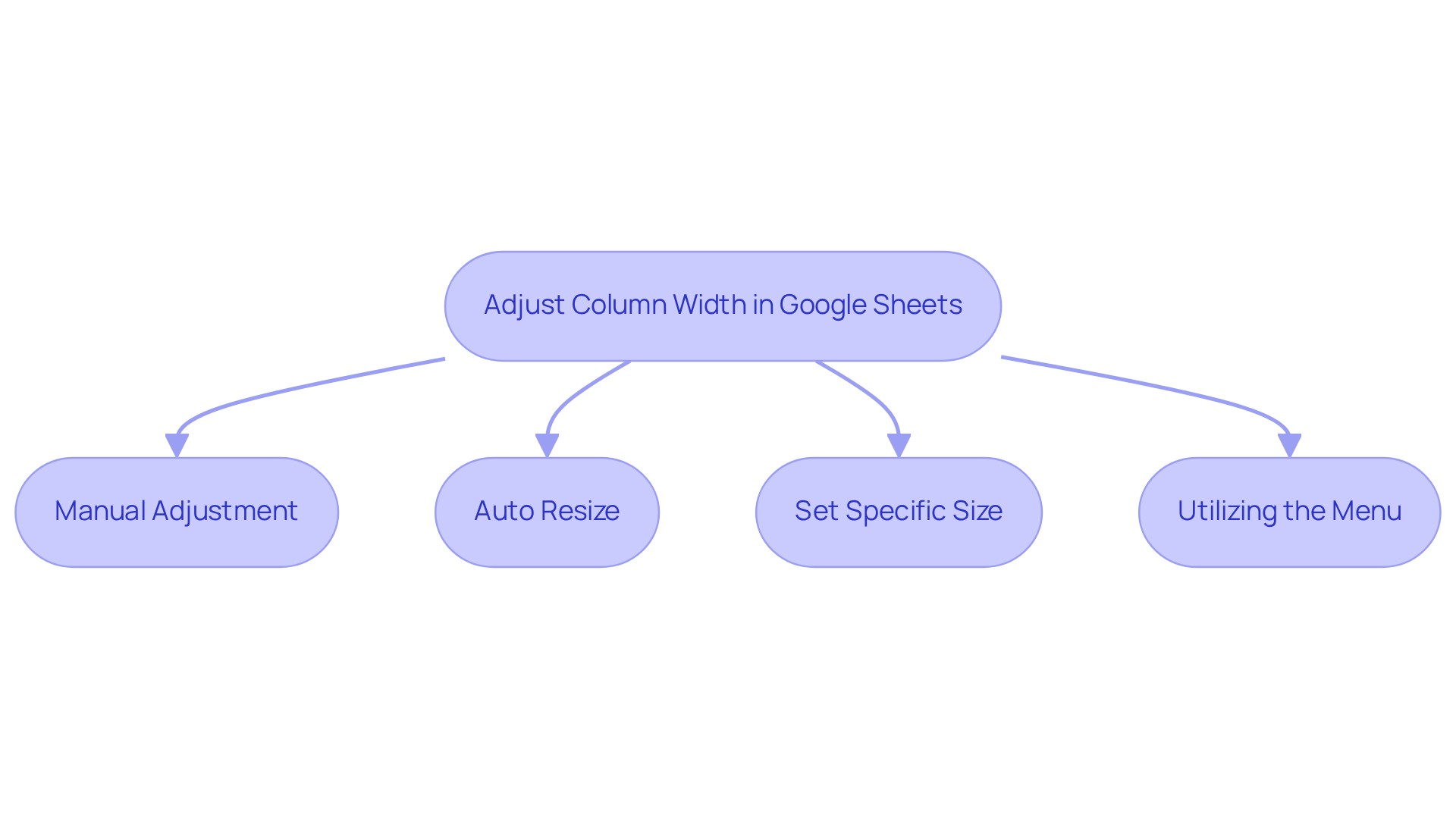
Adjusting column width in Google Sheets is essential for effective data management, and it can be accomplished through several effective methods tailored to different user preferences:
- Manual Adjustment: Position your cursor over the right edge of the header until a double-sided arrow appears. Click and drag to set the desired width.
- Auto Resize: For a quick adjustment, double-click the right edge of the header. This action automatically adjusts the width to fit the content perfectly.
- Set Specific Size: Right-click on the header, choose 'Resize', and enter a specific measurement in pixels for precise control.
- Utilizing the Menu: Highlight the section, navigate to the 'Format' menu, select 'Column size', and enter your preferred measurement.
These methods provide flexibility, allowing users to choose between precision and speed based on their specific needs. As productivity specialist Jessica Lau notes, "You can't alter the size or height of a single cell, but you can adjust the cell dimensions for entire rows or sections in the application." It's also crucial to recognize that the spreadsheet application automatically increases the height of each row to accommodate the tallest value, enhancing the adjustments of the vertical sections.
In practical scenarios, such as automating email alerts when spreadsheet rows are updated, modifying the dimensions can significantly enhance data visibility and boost workflow efficiency. Ultimately, the choice between manual and automatic resizing often hinges on the complexity of the data being managed and the user's workflow preferences.
Follow Step-by-Step Instructions to Adjust Column Width
Modifying the google sheets column width is essential for enhancing the clarity and organization of your data. Here’s how to do it effectively:
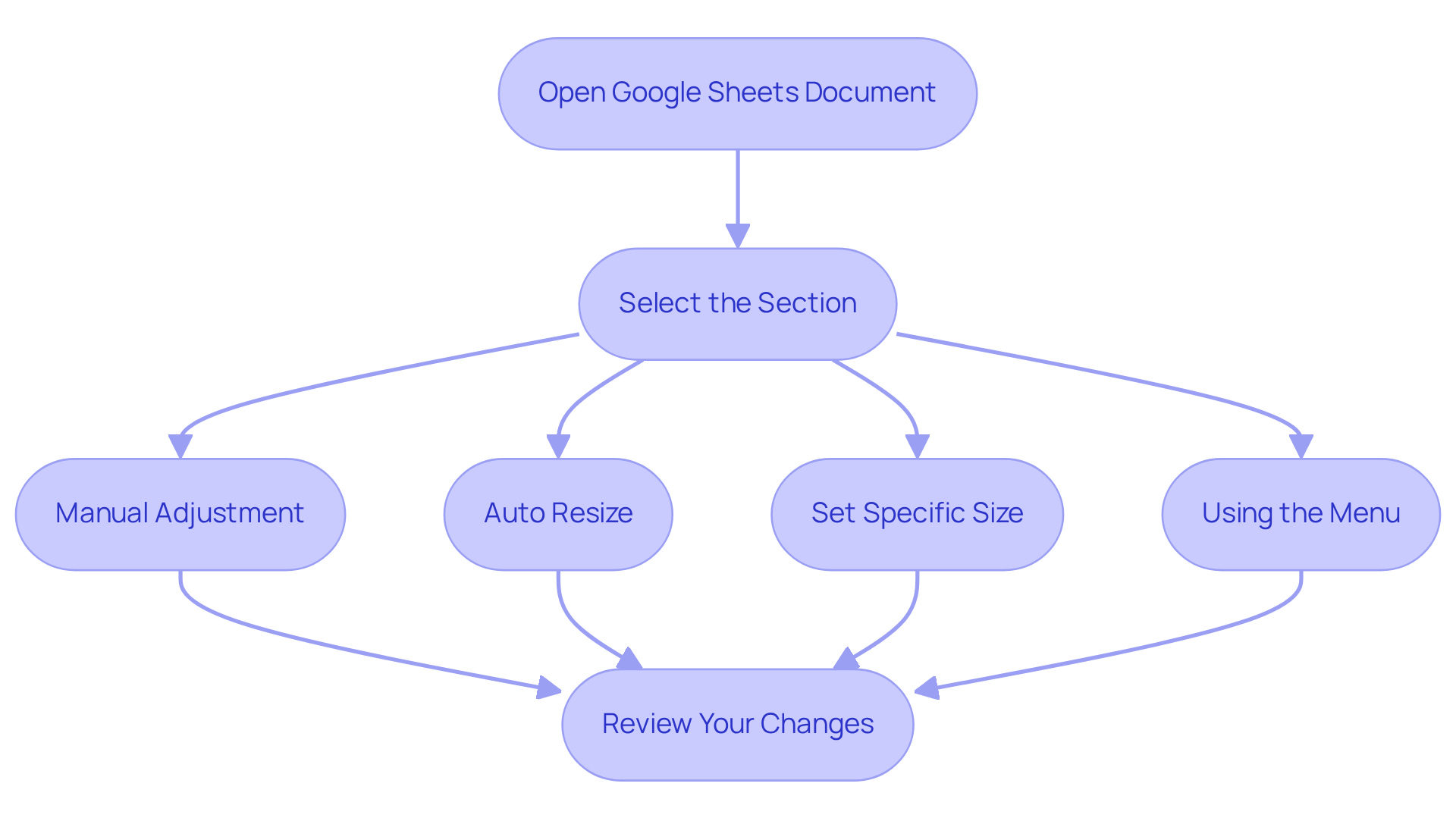
- Open Your Google Sheets Document: Launch Google Sheets and access the document you wish to modify.
- Select the Section: Click on the letter at the top of the section you want to adjust.
- Choose Your Adjustment Method:
- Manual Adjustment: Hover over the right edge of the column header until the cursor changes to a double-sided arrow. Click and drag to set the desired width.
- Auto Resize: Double-click the right edge of the header to automatically adjust the size to fit the content.
- Set Specific Size: Right-click the header of the section, select 'Resize section', and input your desired measurement in pixels.
- Using the Menu: With the section chosen, navigate to 'Format' > 'Column size', and enter your preferred measurement.
- Review Your Changes: After resizing, check that all content is displayed correctly and make further adjustments if needed.
User engagement statistics reveal that efficient management of sections significantly enhances data presentation, simplifying analysis and interpretation for finance professionals. Practical examples show that users frequently adjust the google sheets column width to accommodate varying content sizes, ensuring clarity and accessibility. As one trainer from a tech company stated, "Proper management of sections is essential for maintaining a well-structured and effective spreadsheet." By mastering these techniques, you can elevate the overall functionality of your spreadsheets.
Troubleshoot Common Column Width Adjustment Issues
When modifying the google sheets column width settings, you might encounter several common issues. Here’s how to tackle them effectively:
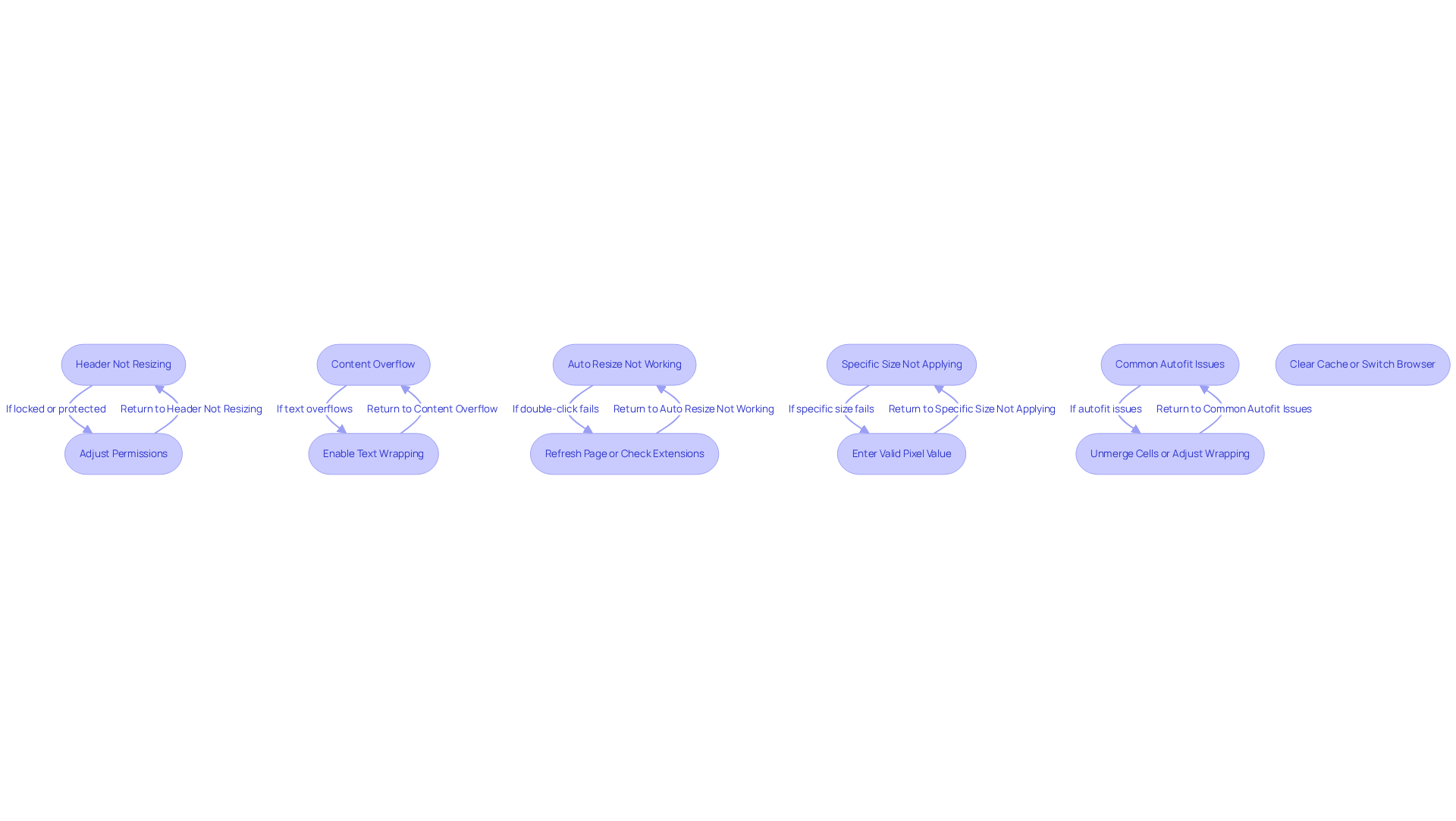
- Header Not Resizing: Are you clicking and dragging the right edge of the header? If the section is locked or protected, you’ll need to adjust the permissions to allow resizing.
- Content Overflow: If text keeps overflowing after resizing, check that text wrapping is enabled. You can find this option under 'Format' > 'Text wrapping', which allows the text to fit within the section's boundaries.
- Auto Resize Not Working: If double-clicking the edge of the section doesn’t adjust its size, consider refreshing the page or checking for any browser extensions that might interfere with Google Sheets. Remember, you can also use the autofit function, which automatically adjusts the section size to fit the longest entry. Just double-click the right edge of the header to use this feature.
- Specific Size Not Applying: When setting a specific size, ensure you enter a valid pixel value. If the issue persists, try clearing your browser cache or switching to a different browser to see if that resolves the problem.
- Common Autofit Issues: Be aware that autofitting may not work correctly if there are merged cells or wrapped text in the area. In such cases, unmerge cells or adjust the text wrapping settings before applying autofit.
By following these steps, you can troubleshoot and modify your google sheets column width effectively, ensuring your data is presented clearly and professionally. If you still face issues, consider exploring additional resources or guides on managing google sheets column width.
Conclusion
Mastering the art of adjusting column width in Google Sheets is crucial for anyone aiming to enhance the clarity and organization of their data. Properly sized columns not only improve data visibility but also prevent misinterpretation, making it easier for users to analyze and present information effectively. By implementing the techniques outlined in this guide, you can significantly elevate your spreadsheet management skills.
This article explores various methods for adjusting column width, including:
- Manual adjustments
- Auto-resizing
- Setting specific pixel sizes
Each method offers unique advantages, catering to different user preferences and workflows. Real-world examples illustrate the practical applications of these techniques, emphasizing their importance for professionals across various fields, from finance to education. Additionally, troubleshooting common issues ensures that you can maintain an efficient workflow without disruptions.
Ultimately, the ability to adjust column width in Google Sheets transcends aesthetics; it is a fundamental skill that enhances overall productivity and data comprehension. Embracing these practices can lead to more organized, visually appealing spreadsheets, fostering better communication and understanding of data. Take the time to implement these adjustments and witness the significant impact they can have on your spreadsheet management.
Frequently Asked Questions
Why is adjusting column width important in Google Sheets?
Adjusting column width is crucial for enhancing data visibility and organization, ensuring that all content is displayed clearly, minimizing whitespace, and preventing text overflow, which can lead to misunderstandings.
How can users transitioning from Excel benefit from understanding column width adjustments in Google Sheets?
Users transitioning from Excel may be familiar with formatting practices that boost readability, making it important for them to understand how to adjust column widths effectively in Google Sheets.
What is the ShortieCuts extension and how does it help with column width adjustments?
The ShortieCuts extension provides access to over 300 Excel ALT shortcuts, simplifying the process of adjusting column widths in Google Sheets. By pressing "ALT" (or Option on Mac), users can see key-tips on the screen for efficient adjustments.
How can users precisely size columns in Google Sheets?
Users can utilize the context menu to enter exact pixel dimensions for column widths, ensuring uniform data presentation.
What is the double-click technique for adjusting column width?
The double-click technique involves double-clicking the border of a column header, which auto-resizes the column width to fit the longest text, saving time and enhancing clarity.
Can you provide an example of when adjusting column width is beneficial?
A finance expert might adjust the column width to ensure full names or descriptions are visible, preventing misinterpretation of critical data. Similarly, instructors can resize sections to create visually appealing and organized spreadsheets.
What is the 'Wrap Text' feature and how does it help with column width?
The 'Wrap Text' feature allows lengthy entries to be displayed within a cell without excessively widening the column, further refining data presentation.
What are the overall benefits of mastering column width adjustments in Google Sheets?
Mastering column width adjustments elevates the aesthetic appeal of spreadsheets and enhances the overall user experience, making data analysis more intuitive and efficient.